How to use Practice Room
A short walk through the app, step by step. This manual is still being written.
A first test, if you would like one
Once Beta 1 is installed, open this performance on your phone and share it into Practice Room. Choose a short passage, set A and B, give it three repetitions with a pause of eight seconds, and play along. That is the whole idea in five minutes.
1. Bring in your first piece
[ to be written: how to add media from the device, and how to share a YouTube video into Practice Room from another app ]
- [ step 1 ]
- [ step 2 ]
- [ step 3 ]

2. Organize your library
[ to be written: renaming, notes, sorting, filtering, groups, favorites ]
- [ step 1 ]
- [ step 2 ]
- [ step 3 ]

3. Mark a passage with A and B
[ to be written: setting A and B, fine-tuning by timecode, zooming into the timeline, naming the segment ]
- The A marker on the timeline, where the passage begins.
- The B marker, where it ends.
- Zoom into the timeline when the passage is short and the recording long.
- Set A places the start at the current playhead.
- Set B places the end.
- Give the segment your own name.
- Save keeps it with the piece.
 1234567
4. Set the repetitions and the pauses
[ to be written: number of repeats, pause after each repetition, and the longer pause at the end ]
- [ step 1 ]
- [ step 2 ]
- [ step 3 ]

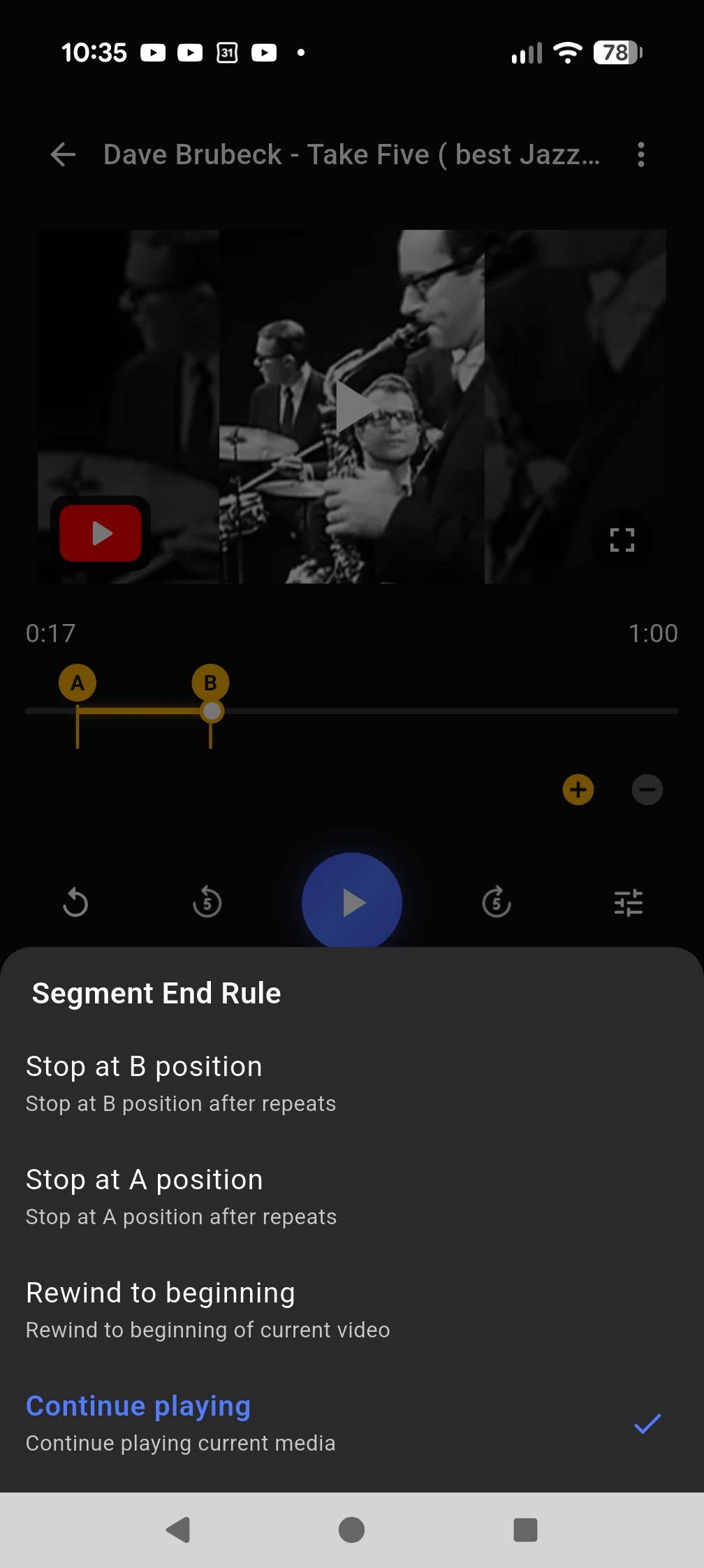
5. Decide what happens after a segment
[ to be written: stop at B, stop at A, rewind to the beginning, or continue playing ]
- [ step 1 ]
- [ step 2 ]
- [ step 3 ]
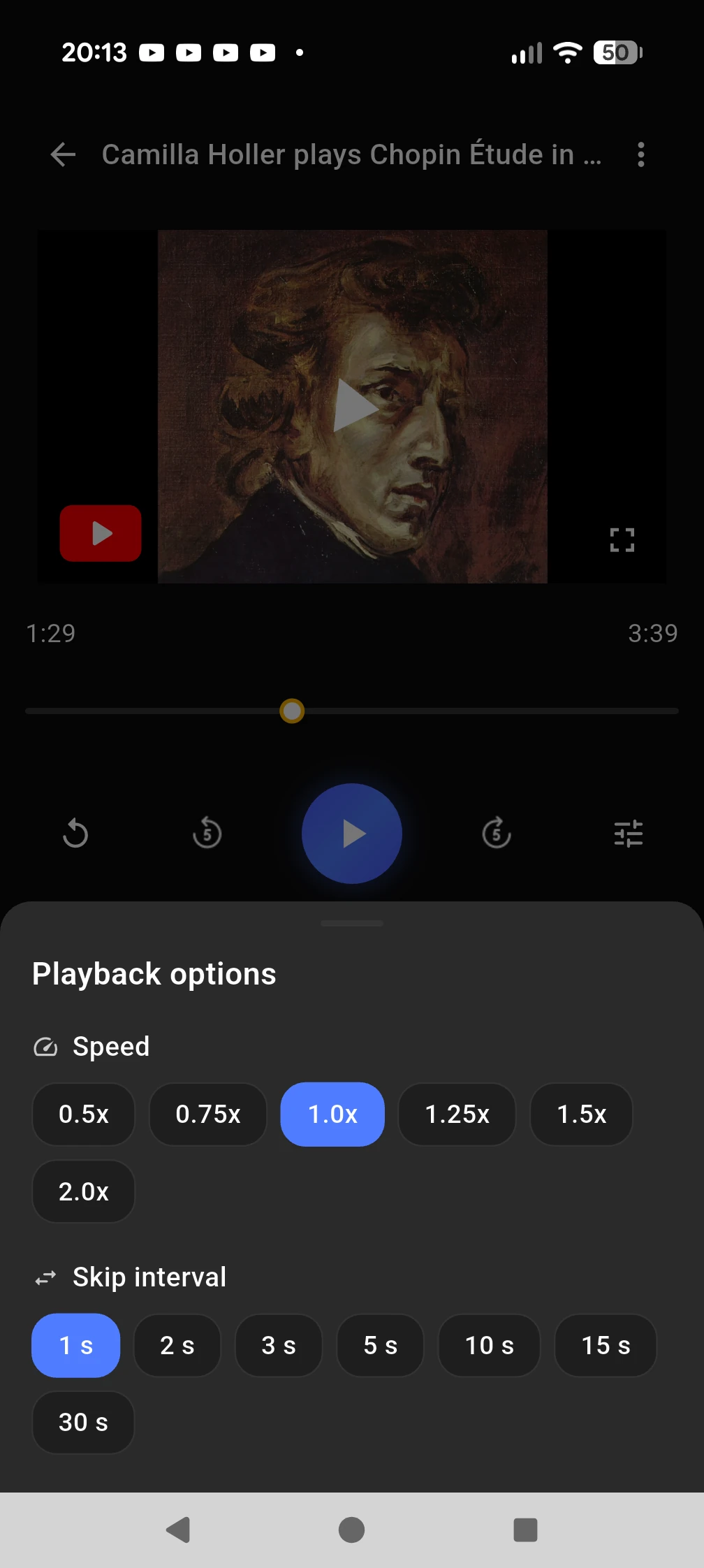
6. Speed, skip interval and pitch
[ to be written: slowing a passage down, the skip interval for moving backward and forward, and pitch on Android ]
- [ step 1 ]
- [ step 2 ]
- [ step 3 ]
7. Send us your feedback
[ to be written: where the feedback page is, and that feedback can be spoken instead of typed ]
- [ step 1 ]
- [ step 2 ]
- [ step 3 ]
